Quick start for the React Native Document Scanner SDK
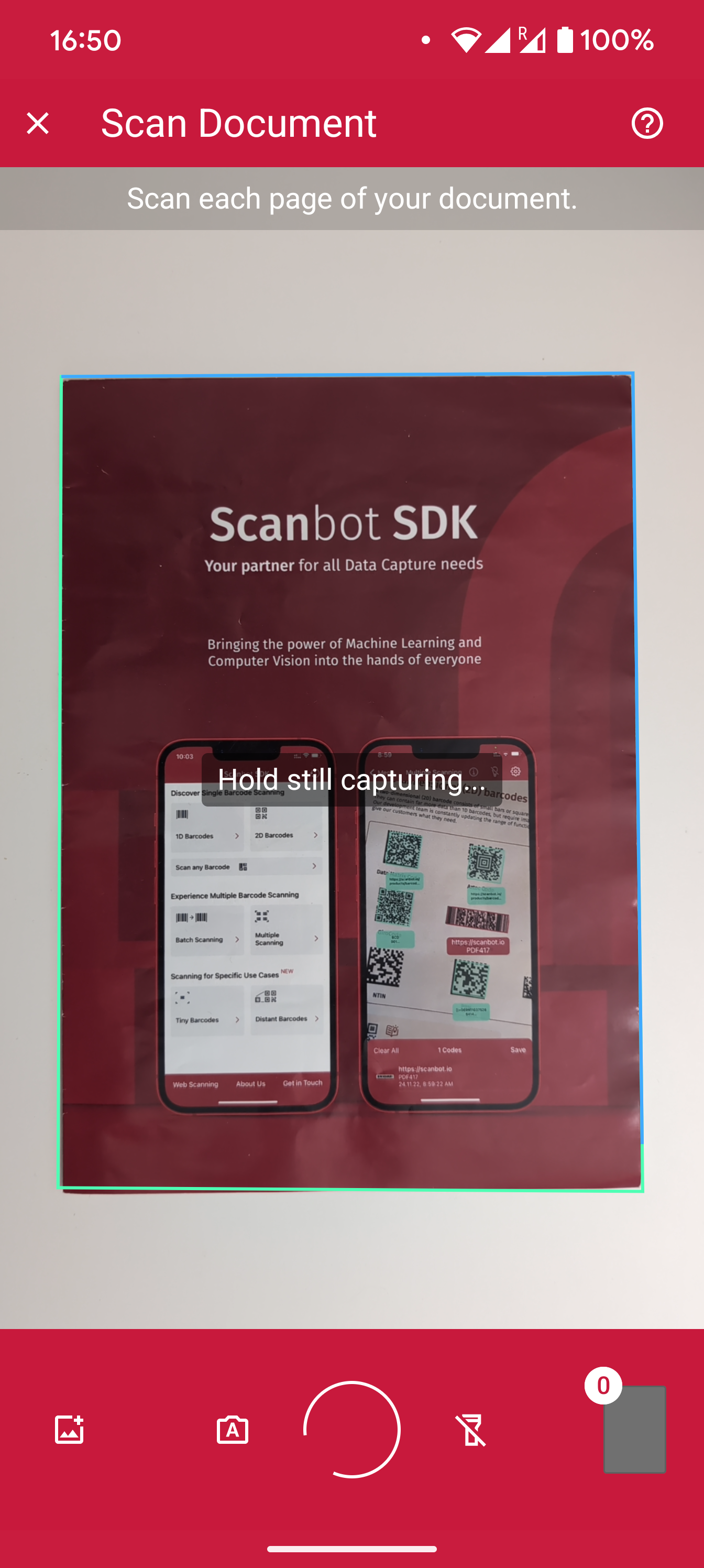
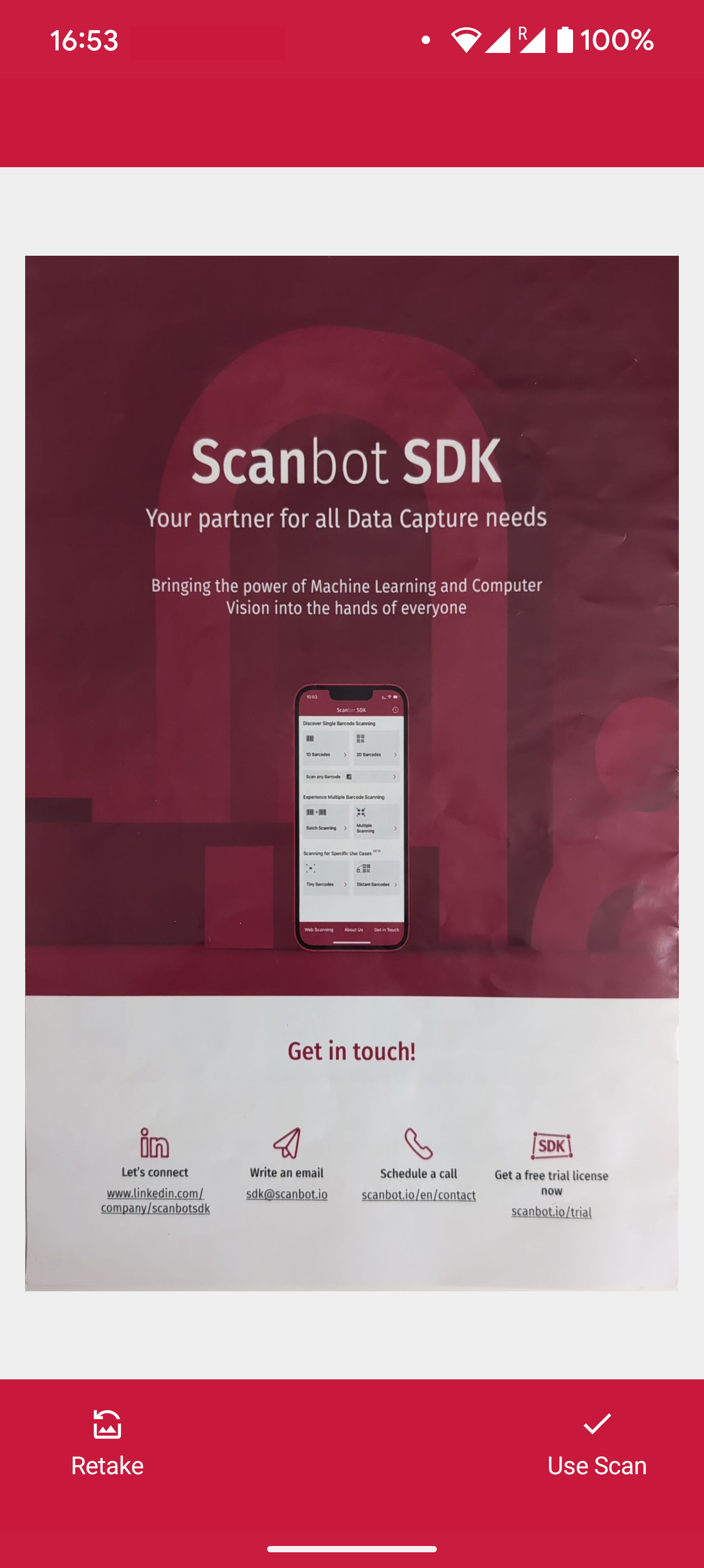
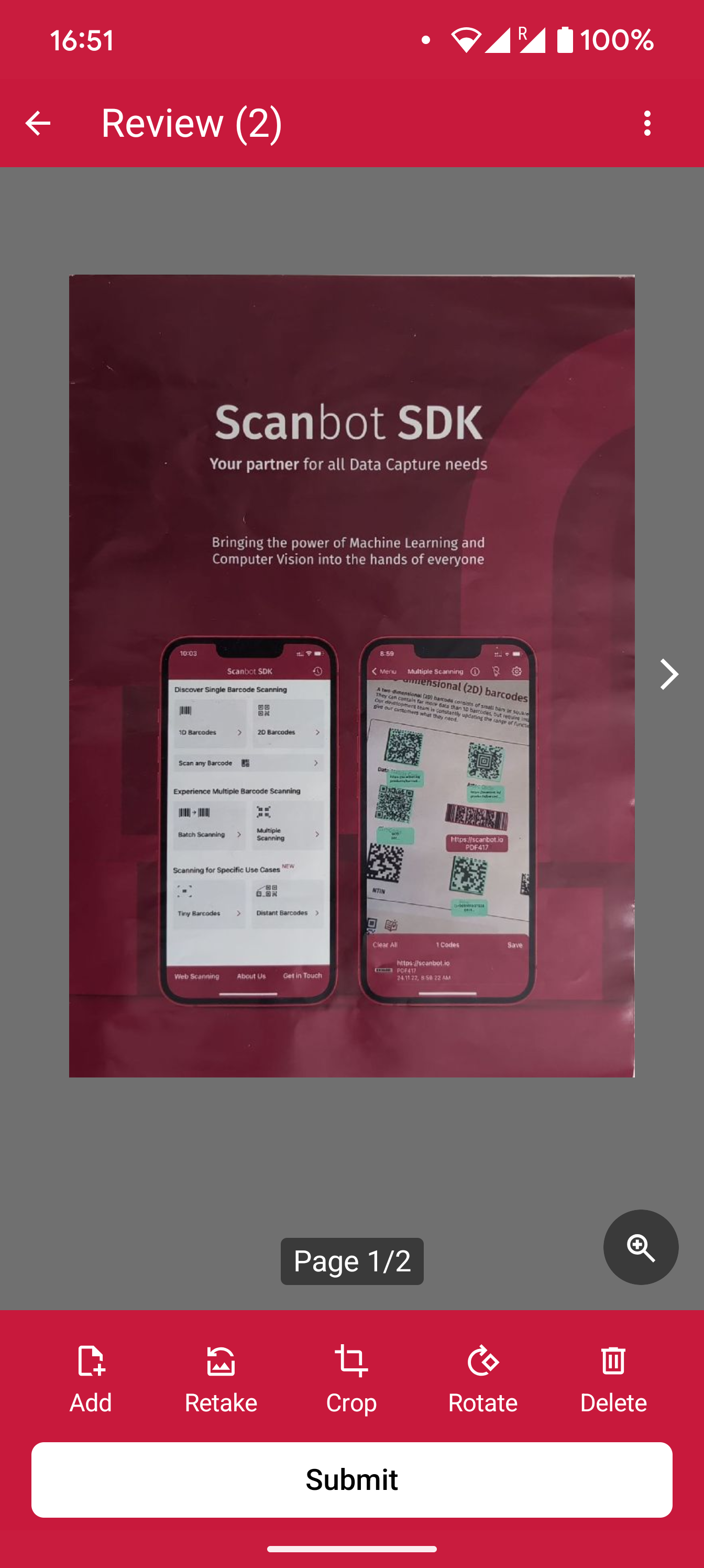
In this section, you'll learn how to set up the Scanbot Document Scanner SDK for React Native in your app, with Document Scanning enabled, all within 10 minutes – thanks to our Ready-to-Use UI!
Install the Document Scanner SDK
To install the Document Scanner SDK, run the following in your root project folder:
- npm
- Yarn
- Expo
npm install react-native-scanbot-sdk
yarn add react-native-scanbot-sdk
npx expo install react-native-scanbot-sdk
To get the latest version of the Scanbot SDK, please refer to the changelog.
Configure the native projects
The Scanbot SDK needs access to the device camera, so it can scan from a live camera stream. Therefore, the camera permission must be defined.
Android
For Android, we need to add the camera permissions in android/app/src/main/AndroidManifest.xml
<uses-permission android:name="android.permission.CAMERA" />
<uses-feature android:name="android.hardware.camera" />
Note how we also added the uses-feature tag for better recognition of your app on the Google Play Store (more about this in the Android developer documentation).
Our Ready-to-Use UI Components handle the runtime permissions automatically, so there is no need to add anything else in the code.
iOS
For iOS, we need to include a description for the camera permission in ios/{projectName}/Info.plist anywhere inside the <dict> element:
<key>NSCameraUsageDescription</key>
<string>Describe why your app wants to access the device's camera.</string>
Integration with Expo
Integration with Expo is possible only when using a Development Build, not Expo Go. The project is configurable using our config plugin or by manually configuring the native projects.
To utilize the plugin, add the following in your app config file:
"plugins": [
  [
    "react-native-scanbot-sdk",
    {
      "iOSCameraUsageDescription": "Document & Barcode Scanning permission",
      "largeHeap": true,
      "mavenURLs": true,
      "ocrBlobsDirPath": "./ocr_blobs"
    }
  ]
],
Initialize the SDK
Before using any feature of the React Native Document Scanner SDK, you need to initialize it.
Ideally, initialization should be done as soon as the app is launched, before any of the SDK's features are used.
Make sure to add the following import to the top of the file:
import ScanbotSDK from 'react-native-scanbot-sdk'
To initialize the SDK, simply use the initialize function:
ScanbotSDK.initialize(new SdkConfiguration({ licenseKey: '' }))
  .then((result) => console.log(result))
  .catch((err) => console.log(err));
You can use the Scanbot React Native Document Scanner SDK for quick testing or evaluation purposes even without a license key. However, the SDK will only work for 60 seconds per app session and may not be used for production purposes.
Want to scan longer than 60 seconds? Get your free trial license key here.
Start the Document Scanner and process the result
The SDK's RTU UI Components make it easy to integrate document scanning functionalities in your app.
To start the single page mode within a component, add the following function:
loading...
Now, to launch the Document Scanner UI, just call the singlePageScanning function where needed.
For example, on the onPress event of a button:
<Button title={"Start single page scanning"} onPress={singlePageScanning} />
🚀 That's it! 🚀 You have successfully integrated a full-featured document scanner as an RTU UI into your app.
💡 Customization: In this Quick Start guide, we use the default configuration for the scanner UI.
Feel free to explore the configs and customize the UI and behavior according to your needs via the DocumentScanningFlow class.
For more details, please refer to the Ready-to-Use UI section.
Want to scan longer than one minute?
Generate a free trial license to test the Scanbot SDK thoroughly.
Get free trial licenseScanbot SDK is part of the Apryse SDK product family
A mobile scan is just the start. With Apryse SDKs, you can expand mobile workflows into full cross‑platform document processing. Whether you need to edit PDFs, add secure digital signatures, or use a fast, customizable document viewer and editor, Apryse gives you the tools to build powerful features quickly.
Learn more