Classic UI
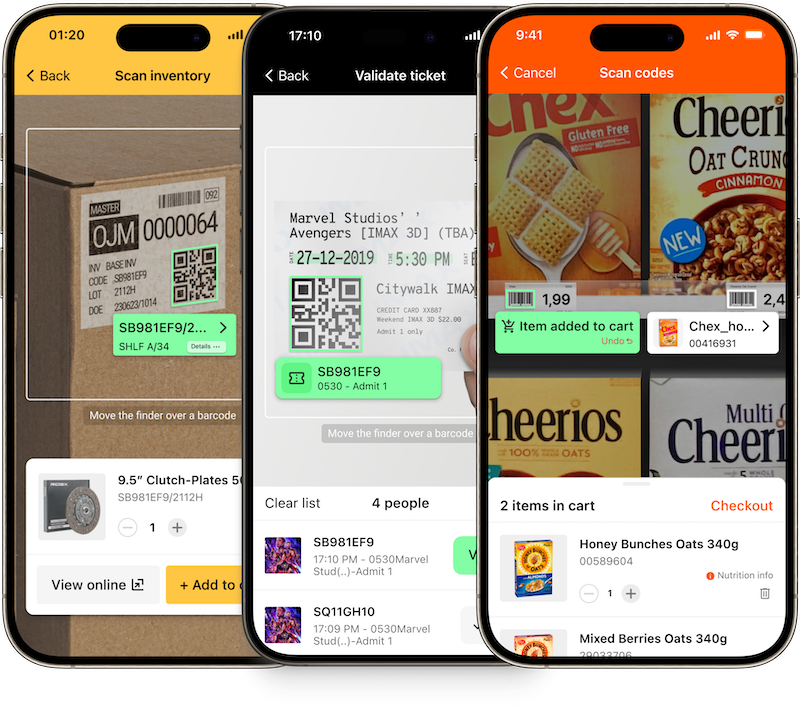
Our Classic UI components allow you to build custom screens which are flexible and fully customizable. It is a set of easy to integrate components (Views, Buttons, Handlers, Controllers, etc.) which can be embedded and extended in your custom screens.
For more details please see the documentation of our native Barcode Scanner SDKs for iOS and Android as well as our example apps.
For a fully functional example, please see our example app scanbot-barcode-sdk-maui-example on GitHub.
BarcodeScannerView
BarcodeScannerView extends BaseBarcodeScannerView with additional functionality specific to barcode scanning scenarios.
Properties and Event Handlers
-
Properties
- BackgroundColor: Determines the background color of the scanner view. Defaults to
Colors.Transparent. - OverlayTextEnabled: A boolean that indicates whether the text overlay is enabled on the scanner. Defaults to
true. - OverlayConfiguration: Configures the overlay for the barcode scanner view.
- IsFlashEnabled: Controls the camera flash state.
- FinderConfiguration: Customizes the finder's appearance and behavior.
- CameraZoomRange: Sets the valid camera zoom factors.
- CameraZoomLevel: Adjusts the camera's zoom level.
- BarcodeFormatConfigurations: Defines the barcode formats configuration object in the scanner will recognize.
- MinFocusDistanceLock: Locks the camera's minimum focus distance.
- CameraModule: Chooses the camera module (e.g.
Front,Back, orBackWidest). Note: TheBackWidesttype is iOS only.
- BackgroundColor: Determines the background color of the scanner view. Defaults to
-
Functions
- Resume: Resumes the Camera session.
- Pause: Pauses the camera session.
- StartDetection: Starts the detection of barcodes, while the camera is still on.
- StopDetection: Stops the detection of barcodes, while the camera is still on.
-
Event Handlers
- OnBarcodeScanResult: Subscribe to this event to receive the Barcodes scan result.
- OnSelectBarcodeResult: Subscribe to this event to receive the barcodes result by user interaction.
- OnBarcodeScanningError: Subscribe to this event to receive failures occurred while barcode scanning.
BarcodeScanAndCountView
BarcodeScanAndCountView extends the BaseBarcodeScannerView to facilitate scenarios requiring both barcode scanning and counting.
Properties and Event Handlers
-
Properties
- BackgroundColor: Sets the background color of the view. Default is
Colors.Transparent. - CheckMarkImageByteArray: A byte array for the custom check mark image to be displayed after a successful scan.
- OverlayConfiguration: Configures the overlay for the barcode scanner view.
- IsFlashEnabled: Controls the camera flash state.
- FinderConfiguration: Customizes the finder's appearance and behavior.
- CameraZoomRange: Sets the valid camera zoom factors.
- CameraZoomLevel: Adjusts the camera's zoom level.
- BarcodeFormatConfigurations: Defines the barcode formats configuration object in the scanner will recognize.
- MinFocusDistanceLock: Locks the camera's minimum focus distance.
- CameraModule: Chooses the camera module (e.g.
Front,Back, orBackWidest). Note: TheBackWidesttype is iOS only.
- BackgroundColor: Sets the background color of the view. Default is
-
Functions
- StartDetection: Starts the detection of barcodes, while the camera is still on.
- StopDetection: Stops the detection of barcodes, while the camera is still on.
- StartScanAndCount: Begins the process of scanning and counting barcodes. It freezes the camera on current frame, Shows a captured frame with highlighted barcodes.
- ContinueScanning: Resumes the camera and prepares for another scan and count operation, without resetting the current barcodes count.
-
Event Handlers
- OnBarcodeScanResult: Subscribe to this event to receive the Barcodes scan result.
- OnScanAndCountFinished Event triggered when the scan and count process is complete.
- OnBarcodeScanningError: Subscribe to this event to receive failures occurred while barcode scanning.
Integration prerequisites
Required: Permission validation
Classic components do not automatically validate camera access permissions. It's up to developers to request and secure these permissions within their applications. Before integrating camera functionalities, ensure that your app has obtained the necessary permissions to provide users with a seamless experience.
- MAUI
- .NET Android
- .NET iOS
For MAUI applications, please see our example on how to request camera permissions to ensure smooth operation:
loading...
Since Android 6.0 (API level 23) you also have to implement a suitable permission requesting and handling at runtime. For more details please see the Android docs "Request App Permissions"
private string[] permissions = new string[] { Manifest.Permission.Camera };
loading...
For NET.iOS application, please see our example on how to request camera permissions to ensure smooth operation:
loading...
For a fully functional example, please see our example app scanbot-barcode-sdk-maui-example on GitHub.
Classic UI component: Barcode Scanner
- MAUI
- .NET Android
- .NET iOS
You can utilize the BarcodeScannerView class from xmlns:classicComponent="clr-namespace:ScanbotSDK.MAUI.Barcode.ClassicComponent;assembly=ScanbotSDK.Shared" to integrate barcode scanning functionality into your application seamlessly.
This component encapsulates the barcode scanning feature within a single UI component.
loading...
In the BarcodeClassicComponentPage class, the CameraView component is configured for barcode scanning.
loading...
Use the class BarcodeScannerView which encapsulates the Barcode Scanning feature in one UI component. When using the BarcodeScannerView component, it is not required to work directly with the Camera view or to set up a finder view separately. Simply follow the steps below and you are ready to go.
To start using the barcode feature, add the following view into your layout xml:
loading...
Then configure the view using the following calls:
loading...
Delegate the methods OnResume and OnPause in your Activity class (or Fragment) to BarcodeScannerView:
loading...
The main class of the Classic UI is SBSDKBarcodeScannerViewController.
Usually this view controller is embedded as a child view controller into another view controller, the parent view controller. The parent view controller usually acts as the delegate and processes the recognition results. You still have full control over the UI elements and can add additional views and buttons to your view controller. The classic component does not display results, instead it just forwards them to the delegate.
loading...
For a fully functional example, please see our example app scanbot-barcode-sdk-maui-example on GitHub.
Classic UI component: Scan & Count
- MAUI
- .NET Android
- .NET iOS
Use the class BarcodeScanAndCountView from xmlns:classicComponent="clr-namespace:ScanbotSDK.MAUI.ClassicComponent;assembly=BarcodeSDK.MAUI"
which encapsulates the Barcode Scanning ScanAndCount feature in one UI component. When using the BarcodeScanAndCountView component, it is not required to work directly with the Camera view or to set up a finder view separately.
To start using the barcode feature, add the following view into your xaml:
loading...
The cameraView component in BarcodeScanAndCountClassicComponentPage handles barcode scanning and counting smoothly.
It manages scan results, visual settings, and detection control.
When the page appears, scanning starts, and it stops when the page disappears. Also, it handles button states for user interaction.
loading...
To enhance the configuration of Overlay with manual barcode SelectionOverlay, you can modify the above code by adding additional parameters and settings according to your needs.
loading...
Use the class BarcodeScanAndCountView which encapsulates the Barcode Scanning ScanAndCount feature in one UI component. When using the BarcodeScanAndCountView component, it is not required to work directly with the Camera view or to set up a finder view separately. Simply follow the steps below and you are ready to go.
To start using the barcode feature, add the following view into your layout xml:
loading...
Then configure the view using the following calls:
loading...
Delegate the methods ScanAndCount and ContinueScanning in your Activity class (or Fragment) to BarcodeScannerView:
loading...
The main class of the Classic UI is SBSDKBarcodeScanAndCountViewController.
Usually this view controller is embedded as a child view controller into another view controller, the parent view controller. The parent view controller usually acts as the delegate and processes the recognition results. You still have full control over the UI elements and can add additional views and buttons to your view controller. The classic component does not display results, instead it just forwards them to the delegate.
loading...
For a fully functional example, please see our example app scanbot-barcode-sdk-maui-example on GitHub.
Want to scan longer than one minute?
Generate a free trial license to test the Scanbot SDK thoroughly.
Get free trial licenseScanbot SDK is part of the Apryse SDK product family
A mobile scan is just the start. With Apryse SDKs, you can expand mobile workflows into full cross‑platform document processing. Whether you need to edit PDFs, add secure digital signatures, or use a fast, customizable document viewer and editor, Apryse gives you the tools to build powerful features quickly.
Learn more