Ready-to-Use UI for the iOS MRZ Scanner Module
Overview
- Portrait
- Landscape
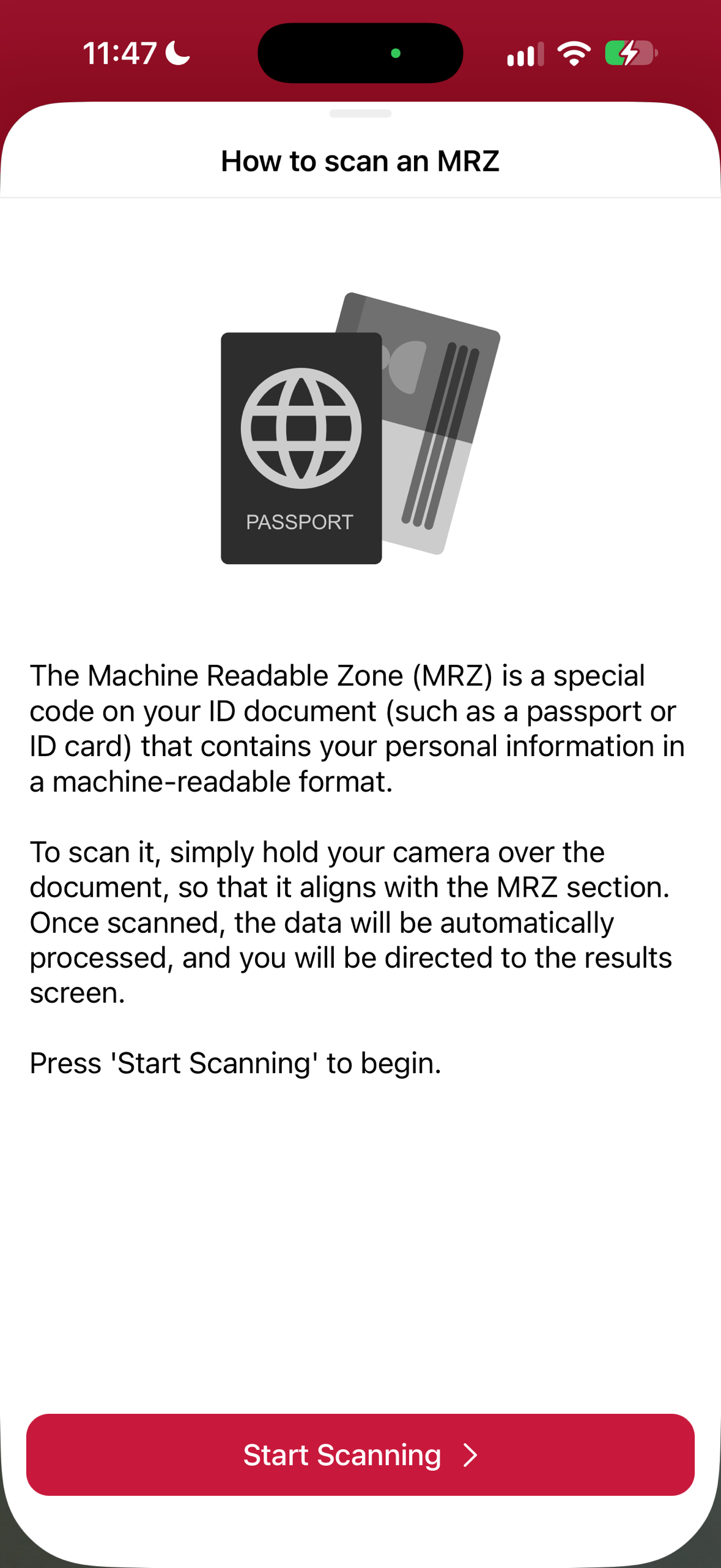
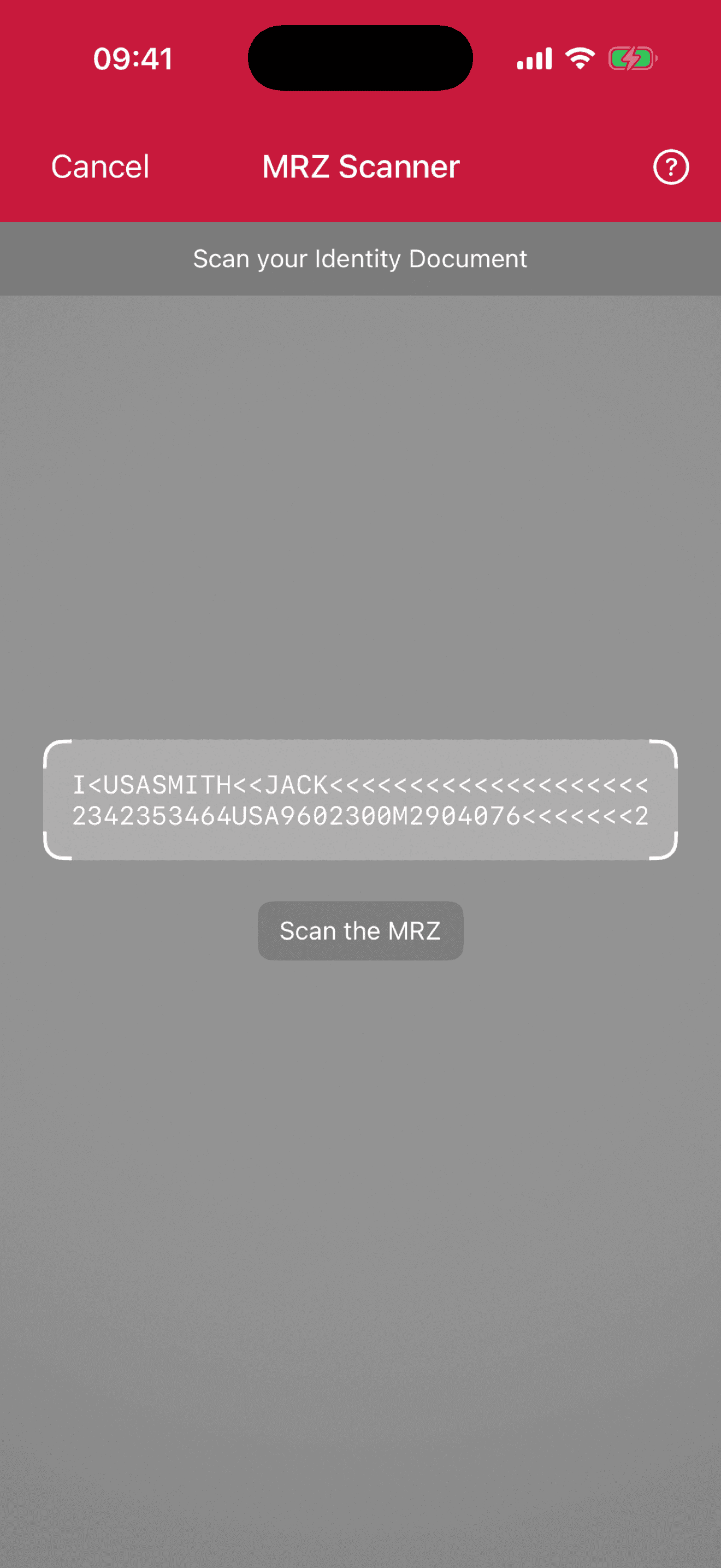
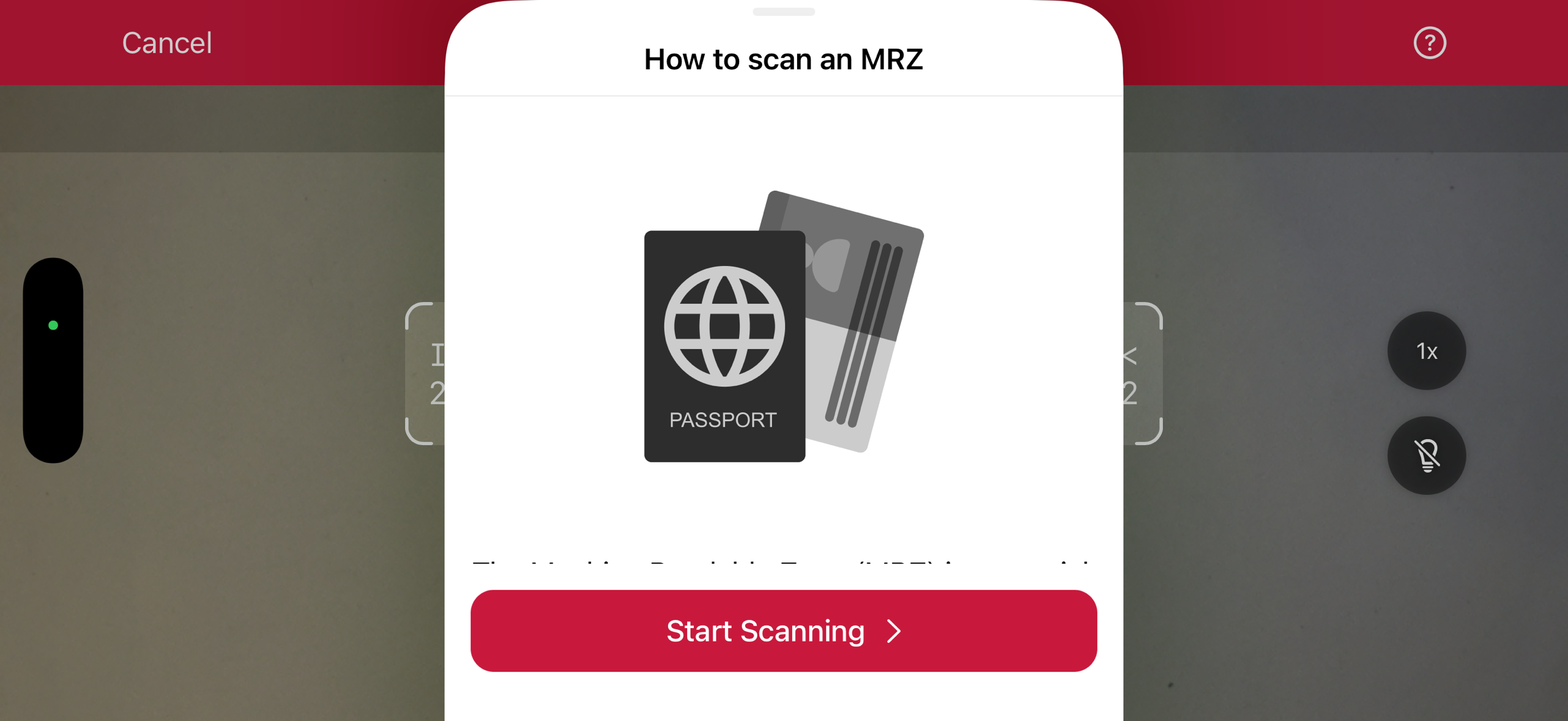
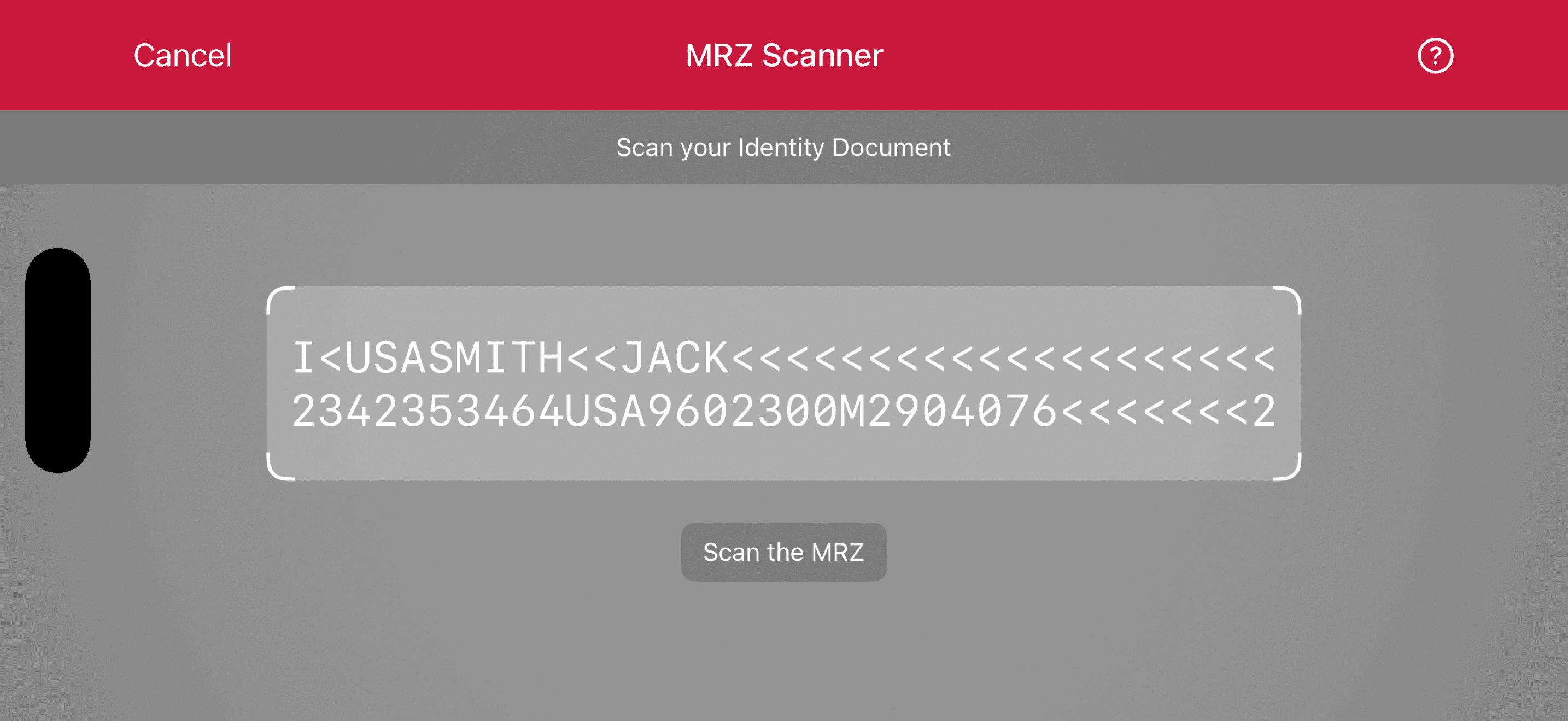
The Ready-to-Use UI (RTU UI) for MRZ scanning offers a pre-built, user-friendly interface for seamlessly integrating MRZ scanning capabilities into applications. Designed to detect, read, and extract data from the MRZ sections of documents like passports, visas, and ID cards etc, this solution combines precision and performance with minimal integration effort.
The RTU UI is not only optimized for fast and accurate recognition but also provides extensive customization options, allowing developers to tailor the interface and behavior to match specific app workflows and branding. Its advanced scanning ensures reliable results even in challenging conditions, such as low light or tilted document angles, making it an ideal choice for industries requiring robust identity verification or automated document processing.
By leveraging the RTU UI, developers can deliver a streamlined, professional-grade MRZ scanning experience with enhanced usability and efficiency.
Although the main idea of the RTU UI is to provide simple-to-integrate and simple-to-configure components, its customization capabilities are numerous and should suit most of your needs. To achieve an even higher degree of customization, you can implement a custom UI and business logic using our Custom UI Components.
Launching the scanner
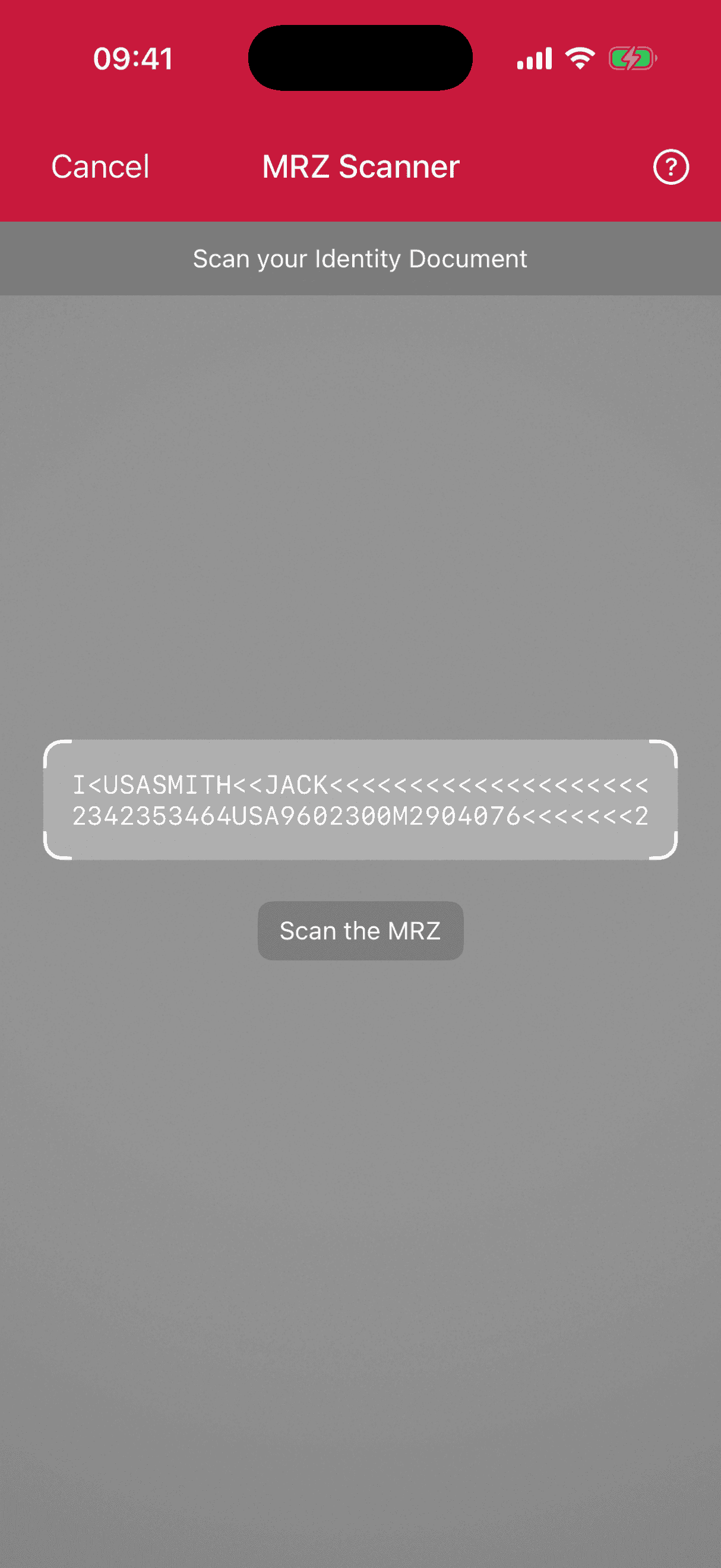
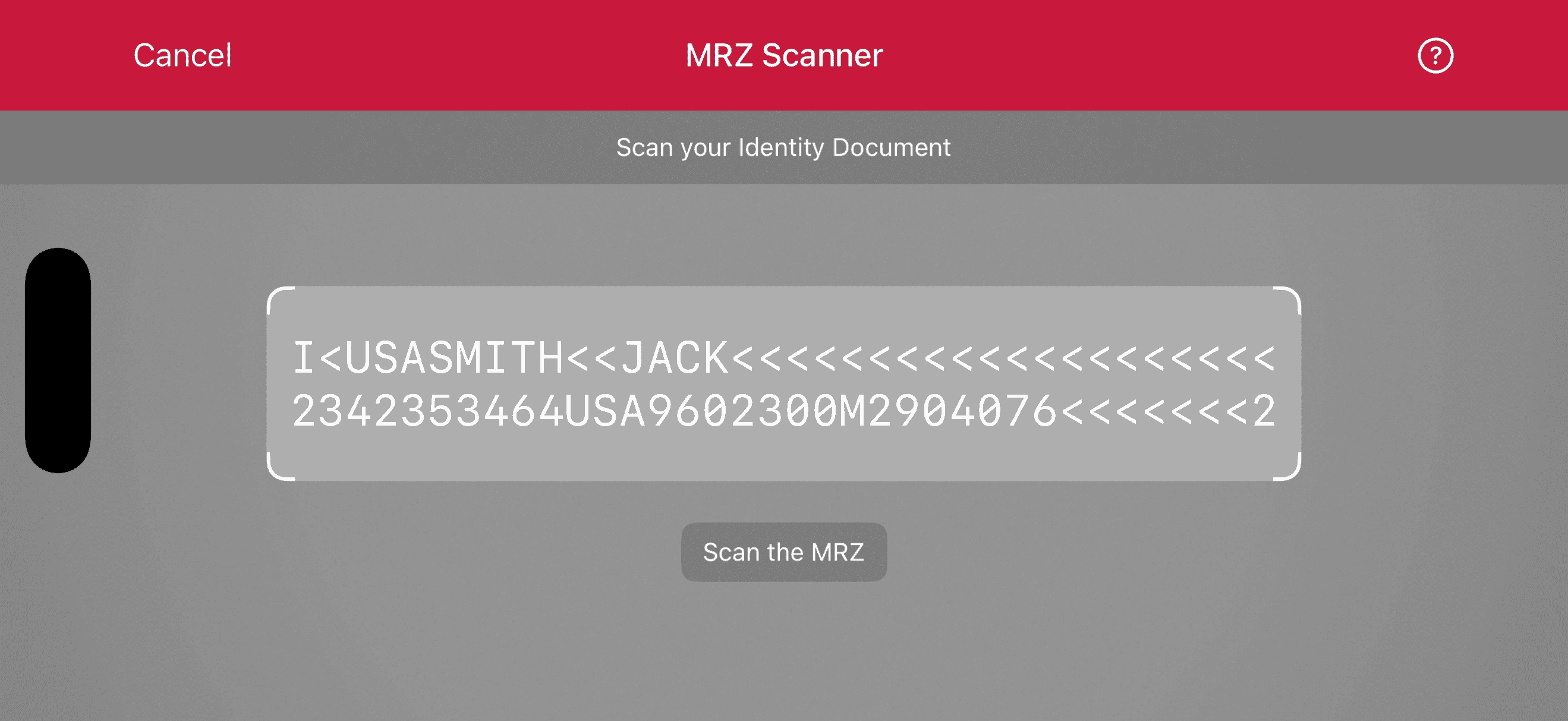
You can start the MRZ Scanner with minimal code.
- Portrait
- Landscape
- UIKit
- SwiftUI
loading...
loading...
Change the visuals to suit your needs
The RTU UI comes with various configuration options that you can use to quickly adapt its visual appearance.
Palette
Using the new palette feature, you can change the UI components' colors to match your brand design.
- UIKit
- SwiftUI
loading...
loading...
Localization
Using the new localization feature, you can easily localize the strings that are displayed on buttons, labels and text fields.
- UIKit
- SwiftUI
loading...
loading...
Introduction Screen
The Introduction Screen guides the user by providing an overview on how to use the scanner effectively. You can configure this screen according to your needs, and can also set a custom text and an image that suits your use case.
- Portrait
- Landscape
- UIKit
- SwiftUI
loading...
loading...
User guidance
Text elements like the on-screen user guidance can be adapted in form and color.
- UIKit
- SwiftUI
loading...
loading...
Top bar
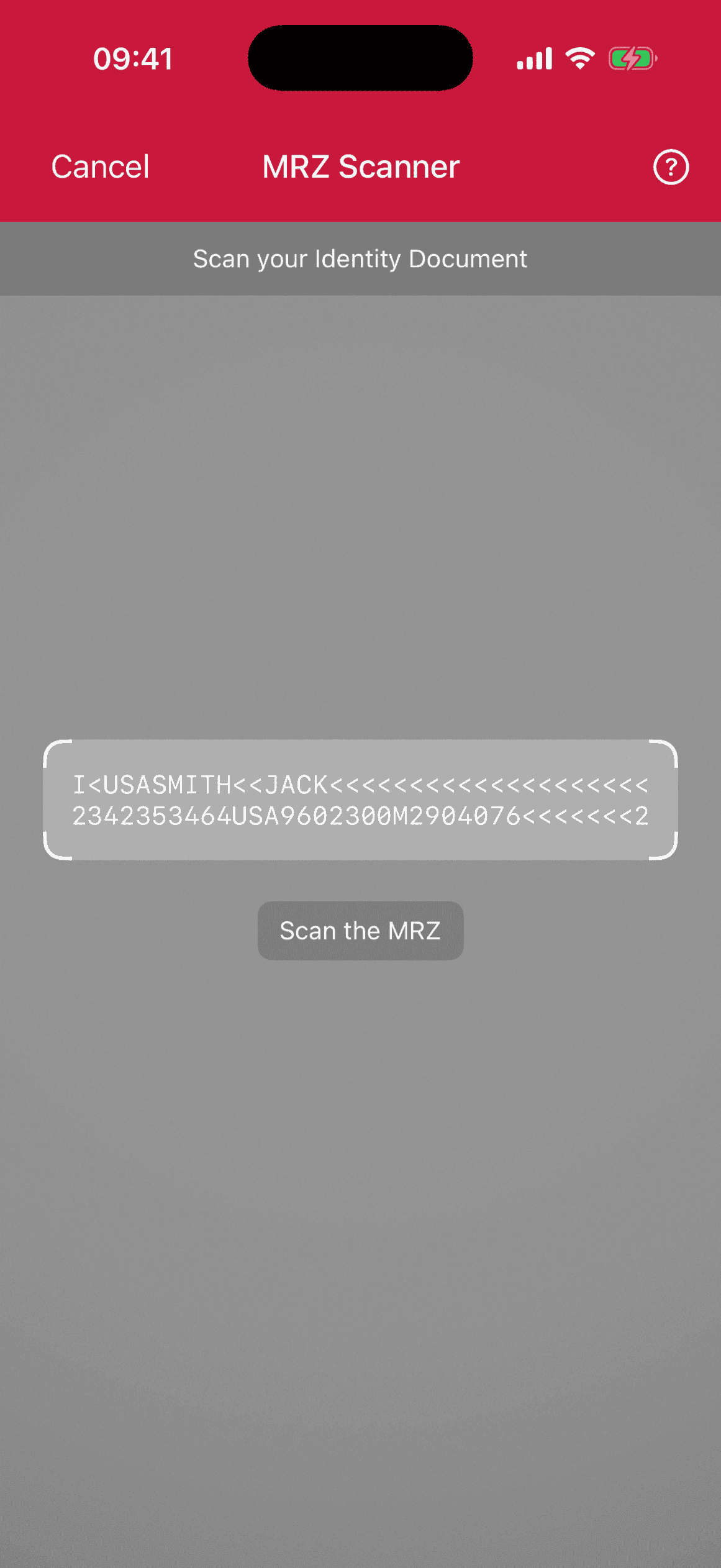
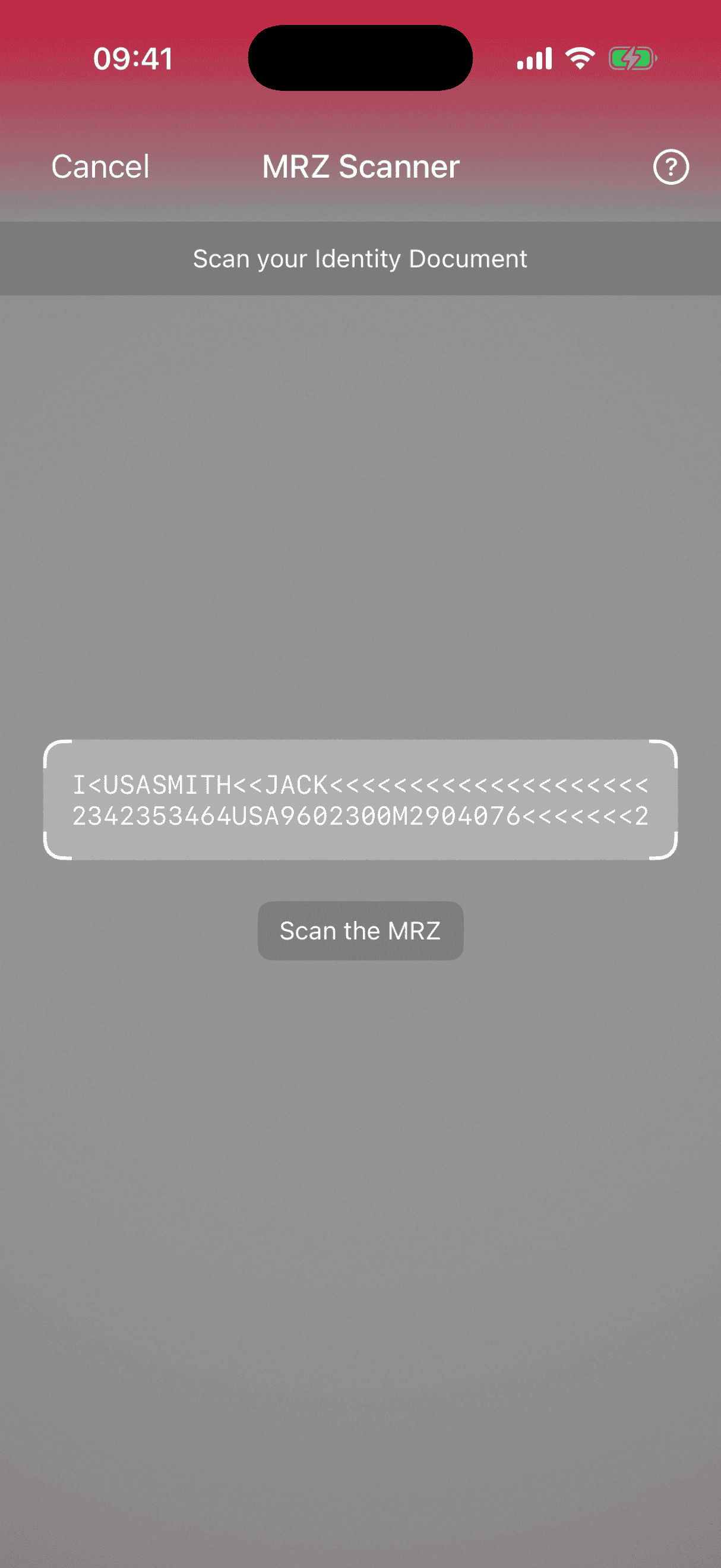
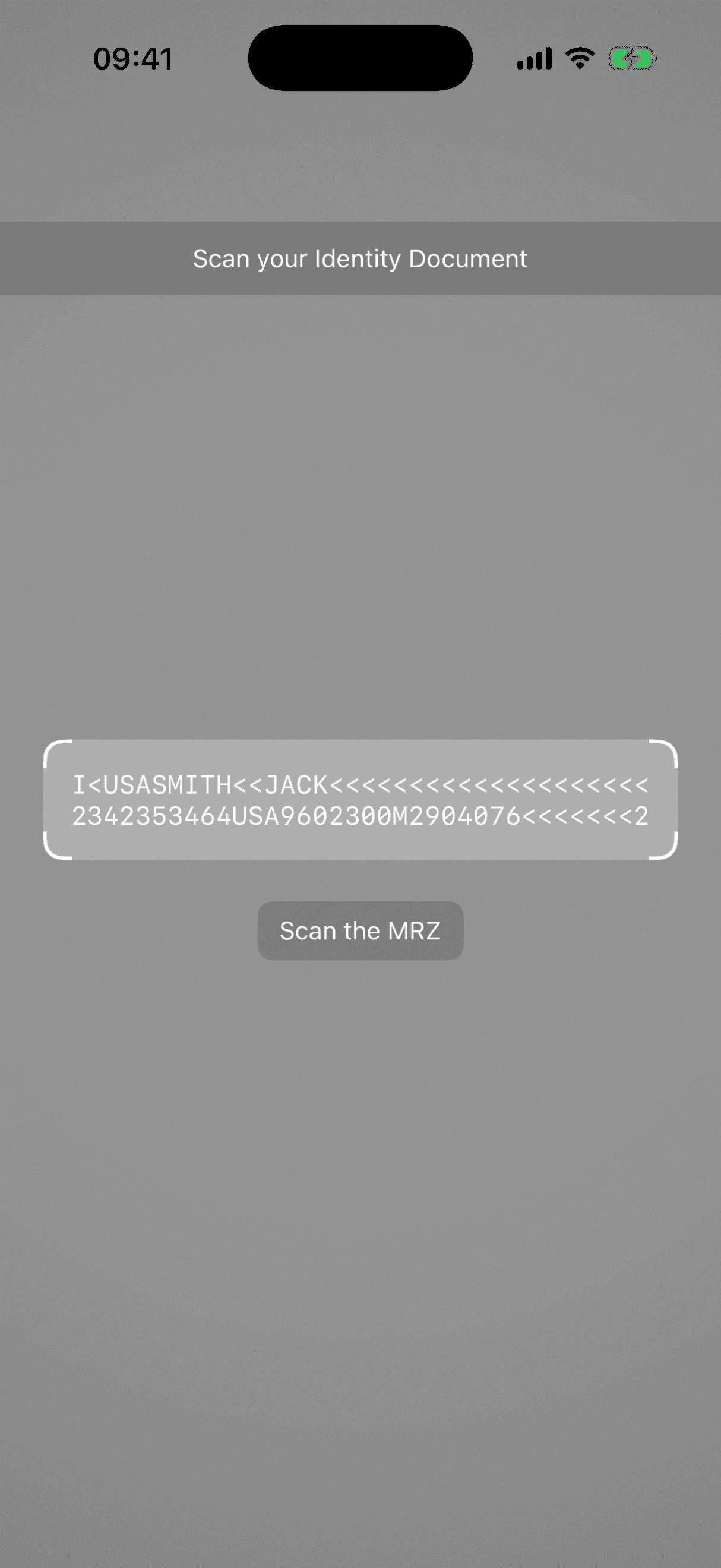
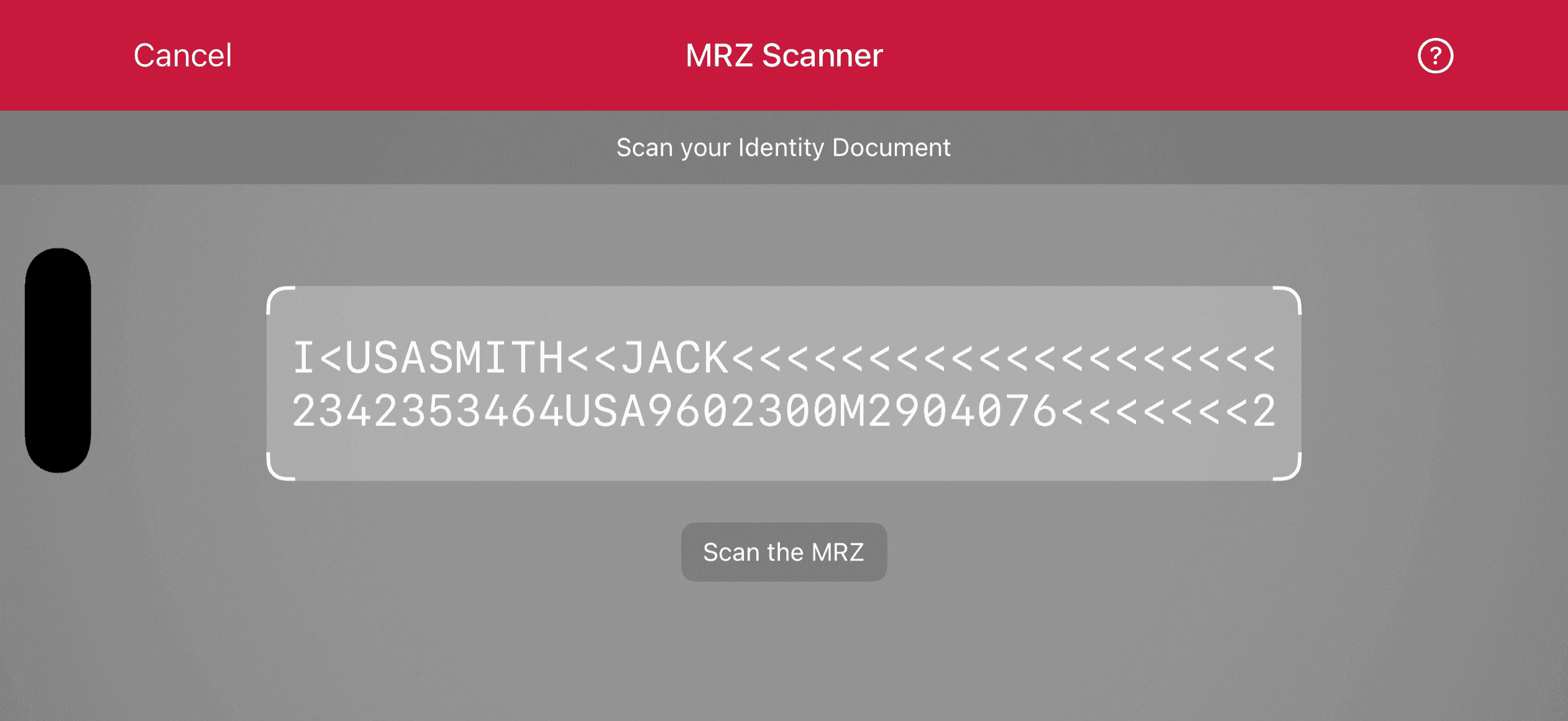
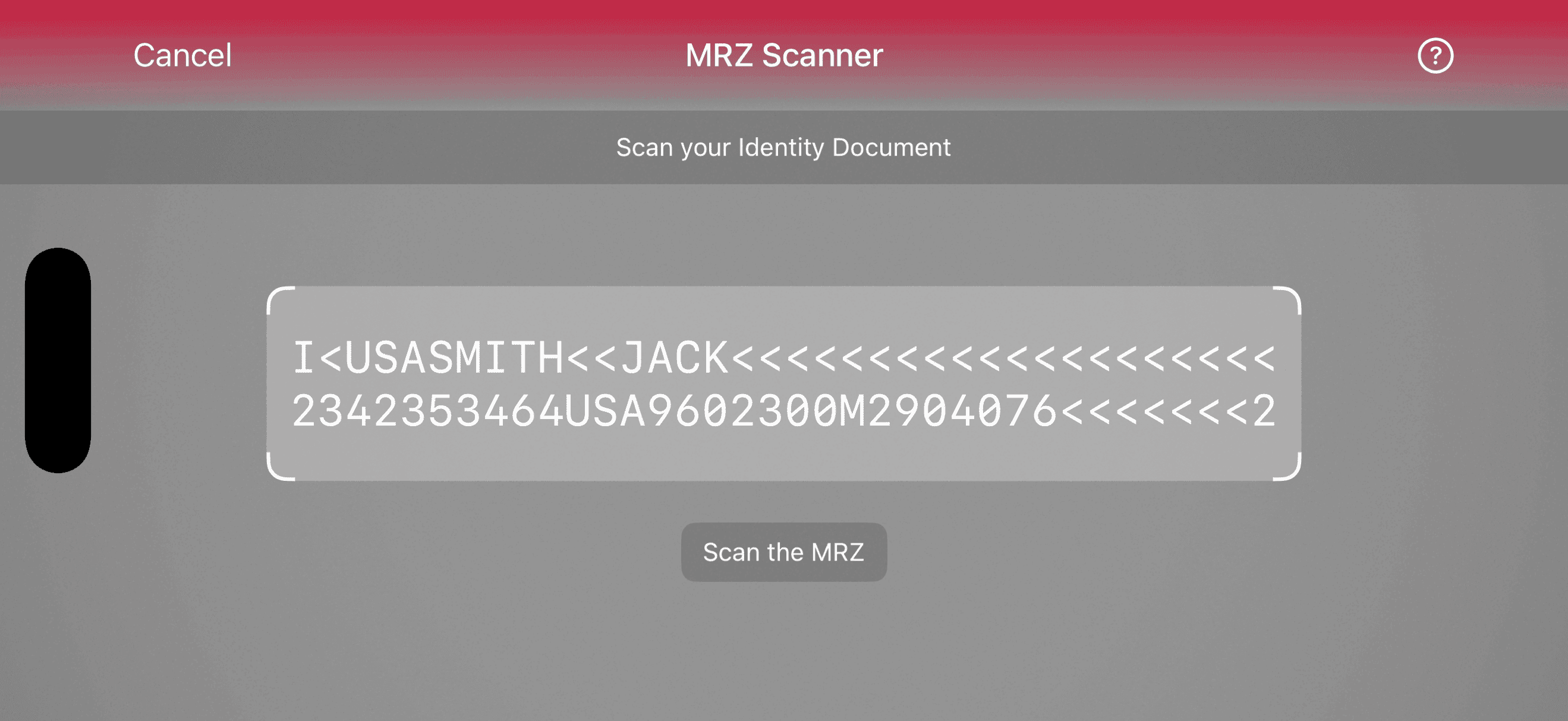
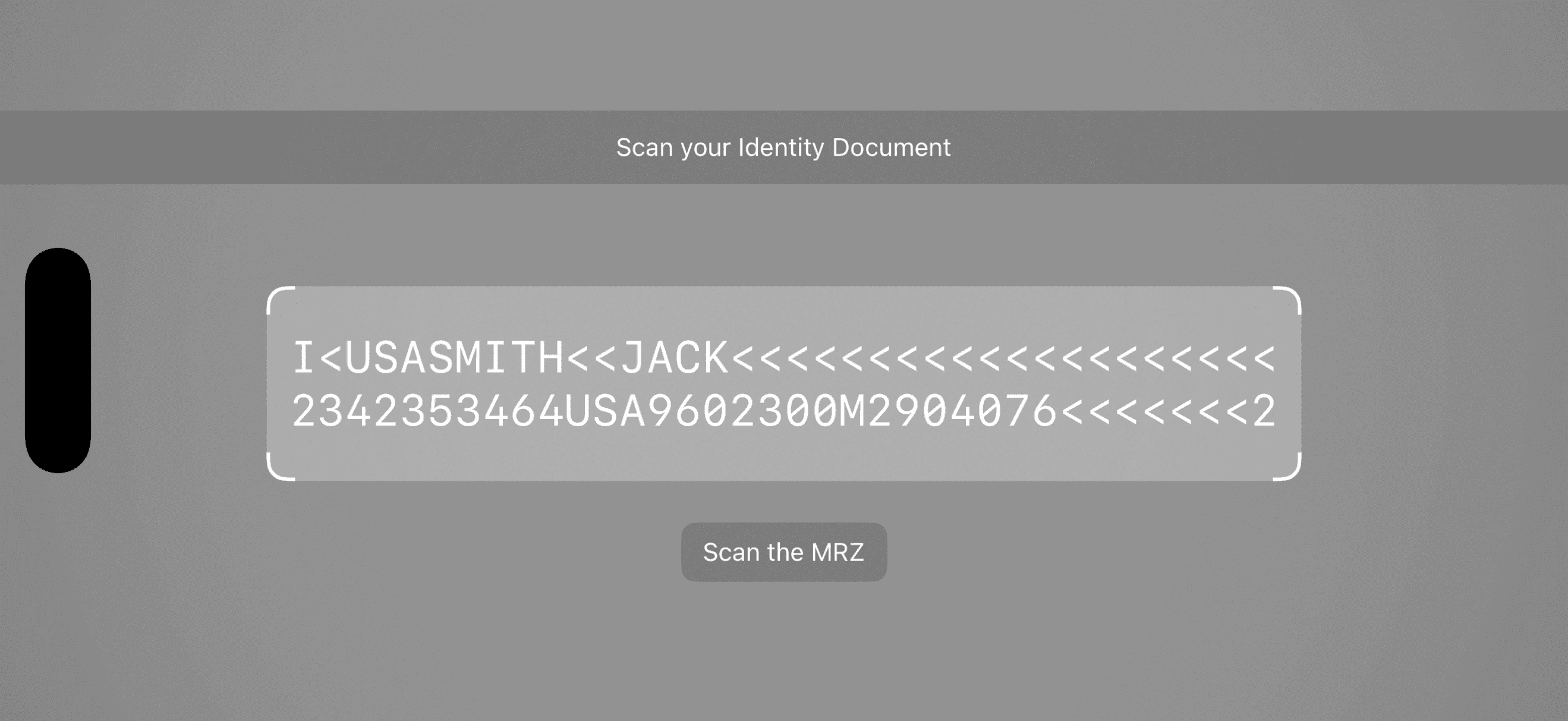
You can choose how to display the top bar in your app: hidden, solid or gradient.
- Portrait
- Landscape
- UIKit
- SwiftUI
loading...
loading...
Finder Overlay
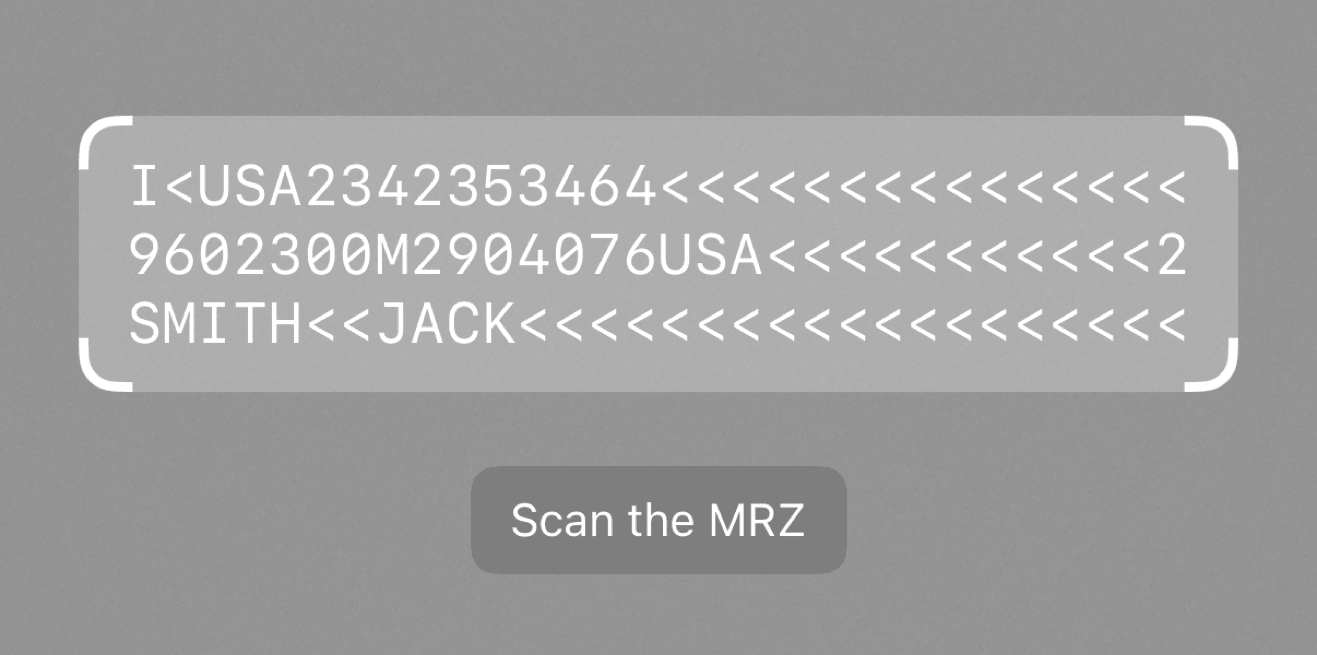
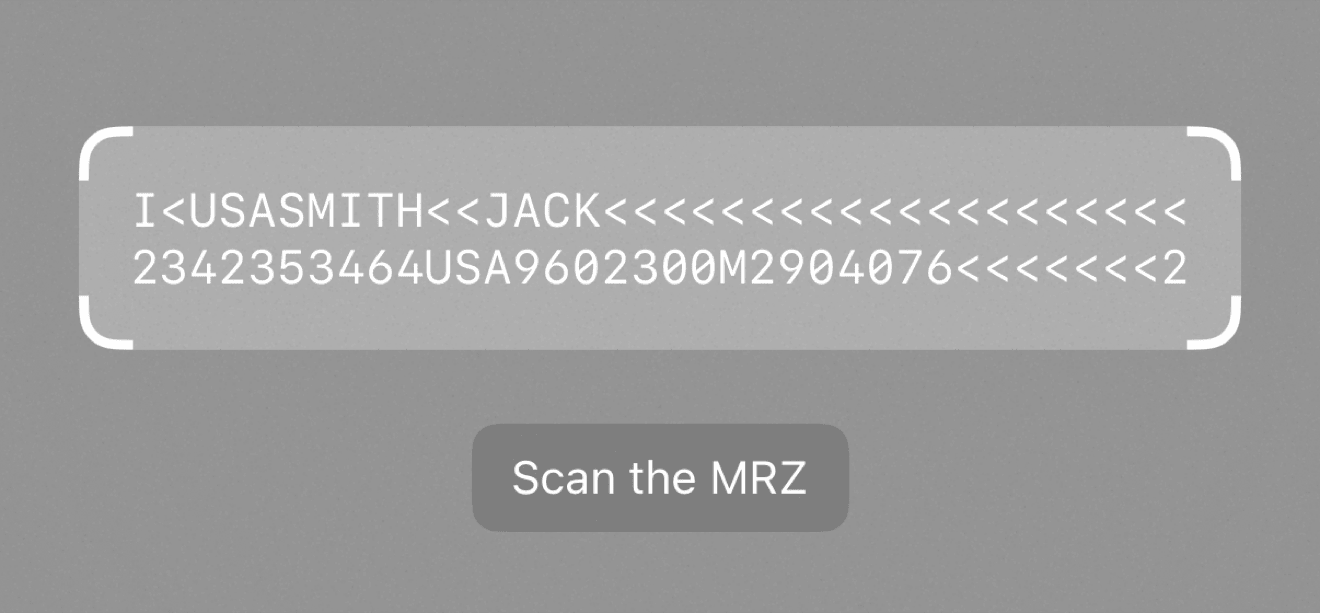
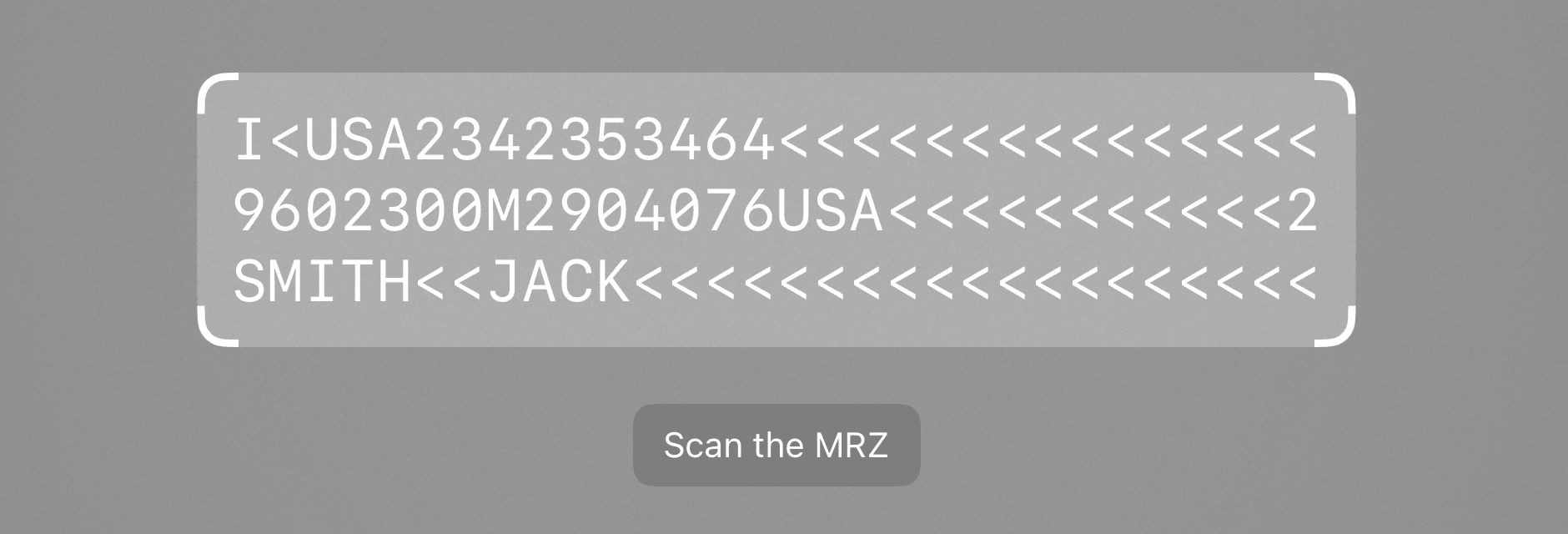
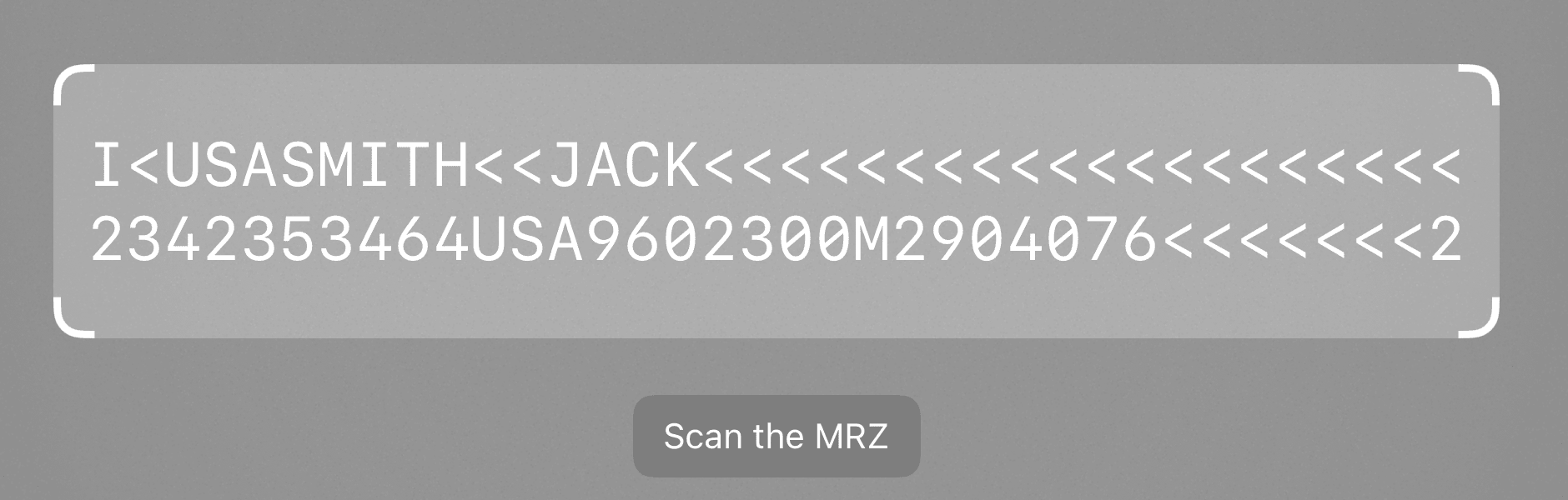
You can choose between the two-line and three-line preset for the finder overlay. Each overlay preset has a default text for each line, which can be changed according to your liking.
- Portrait
- Landscape
- UIKit
- SwiftUI
loading...
loading...
Action bar
The zoom and flash buttons are included out of the box.

- UIKit
- SwiftUI
loading...
loading...
Scanning
The following is an example to configure some of the general and behavioral settings to tailor the overall scanning experience.
- Portrait
- Landscape
- UIKit
- SwiftUI
loading...
loading...
SwiftUI Support
The RTU UI is also available natively for SwiftUI using SBSDKUI2MRZScannerView.
The following example demonstrates how to integrate the RTU UI into a SwiftUI view.
loading...
Want to scan longer than one minute?
Generate a free trial license to test the Scanbot SDK thoroughly.
Get free trial licenseScanbot SDK is part of the Apryse SDK product family
A mobile scan is just the start. With Apryse SDKs, you can expand mobile workflows into full cross‑platform document processing. Whether you need to edit PDFs, add secure digital signatures, or use a fast, customizable document viewer and editor, Apryse gives you the tools to build powerful features quickly.
Learn more