RTU UI Review Screen
Overview
The Review Screen allows users to manage and review their scanned documents before finalizing them. This screen provides a comprehensive set of tools to ensure that all pages are in the correct order and meet the desired quality. If not needed, the Review Screen can also be disabled to speed up the scanning workflow.
- Rotate: Rotate any page to ensure proper orientation.
- Crop: Crop pages to remove unwanted borders or adjust the document's frame.
- Reorder: Change the order of the pages to match the desired sequence.
- Retake: Scan a particular page again if it doesn't meet quality expectations.
- Add Page: Add a new page at any position within the multi-page document to include additional content.
- Delete: Delete one or multiple pages, or clear all pages if necessary.
- Zoom: Zoom in on any page to inspect details closely.
- Submit: Once all pages are reviewed and managed, the user can tap the Submit button to complete the document scanning flow.
This screen is highly customizable and ensures that the users have full control over their scanned documents, enabling them to make any necessary adjustments before submission.
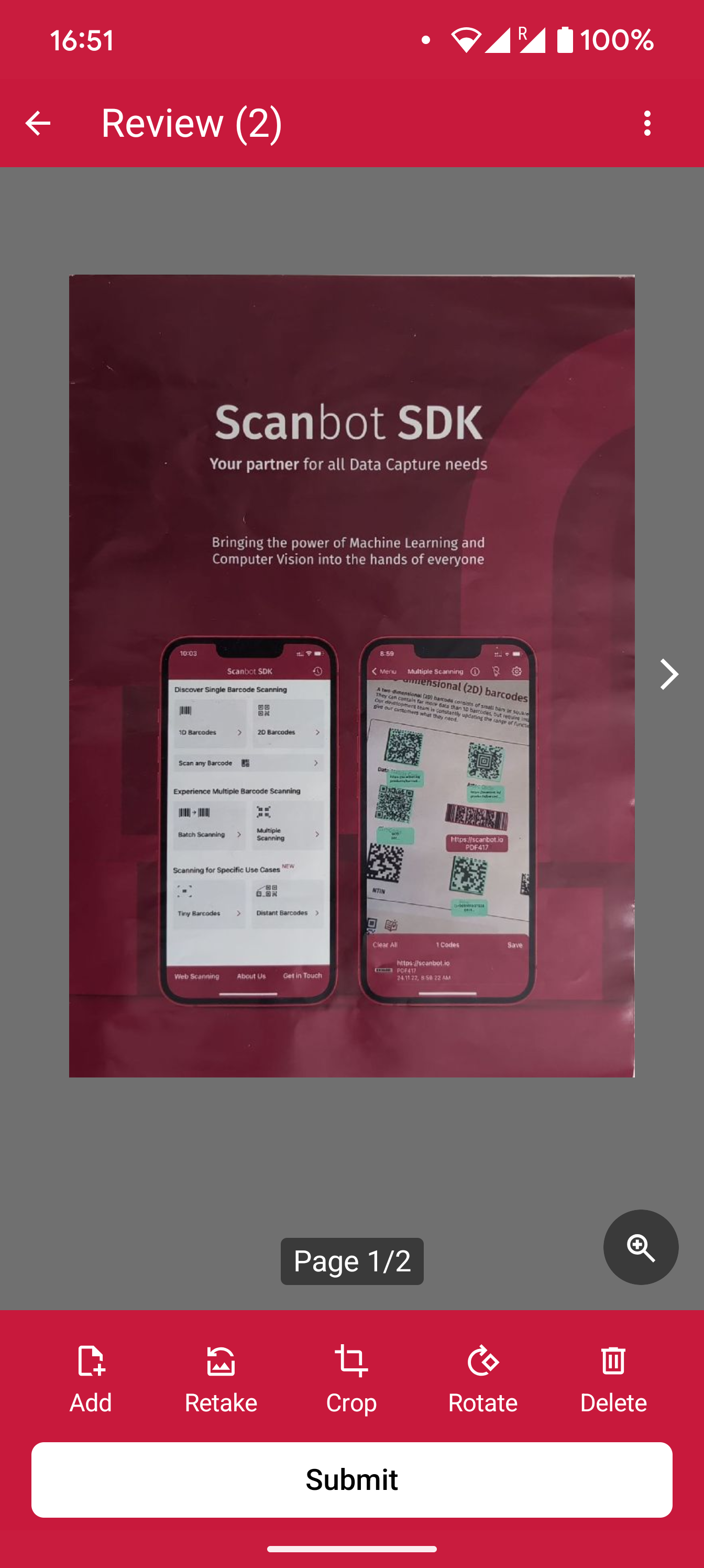
Example configuration of the Review Screen
loading...
Want to scan longer than one minute?
Generate a free trial license to test the Scanbot SDK thoroughly.
Get free trial licenseScanbot SDK is part of the Apryse SDK product family
A mobile scan is just the start. With Apryse SDKs, you can expand mobile workflows into full cross‑platform document processing. Whether you need to edit PDFs, add secure digital signatures, or use a fast, customizable document viewer and editor, Apryse gives you the tools to build powerful features quickly.
Learn more