RTU UI Scanning Screen
Overview
The Scanning Screen is the most important part of the scanning flow, designed to provide a seamless and efficient document capture experience.
Here are some key features:
- Import from gallery: Users can import images directly from their device’s gallery, allowing for the integration of existing photos into the document scanning workflow.
- Page limit configuration: Developers can set a page limit for the number of pages that can be scanned in a single session, helping to manage document size and user expectations.
- Capture feedback animation: The Scanning Screen offers configurable feedback animations. Choose between a checkmark animation or the document genie/funnel animation to enhance user interaction and provide visual confirmation of successful captures.
- User guidance: The scanner overlays dynamic text instructions to guide the user through the scanning process. This guidance adapts to the current state, such as suggesting adjustments if the document is at a bad angle or if the lighting is insufficient. These states are predefined, allowing developers to set custom text for each state.
These features combine to create an intuitive and user-friendly scanning experience, ensuring high-quality document captures every time.
- Portrait
- Landscape
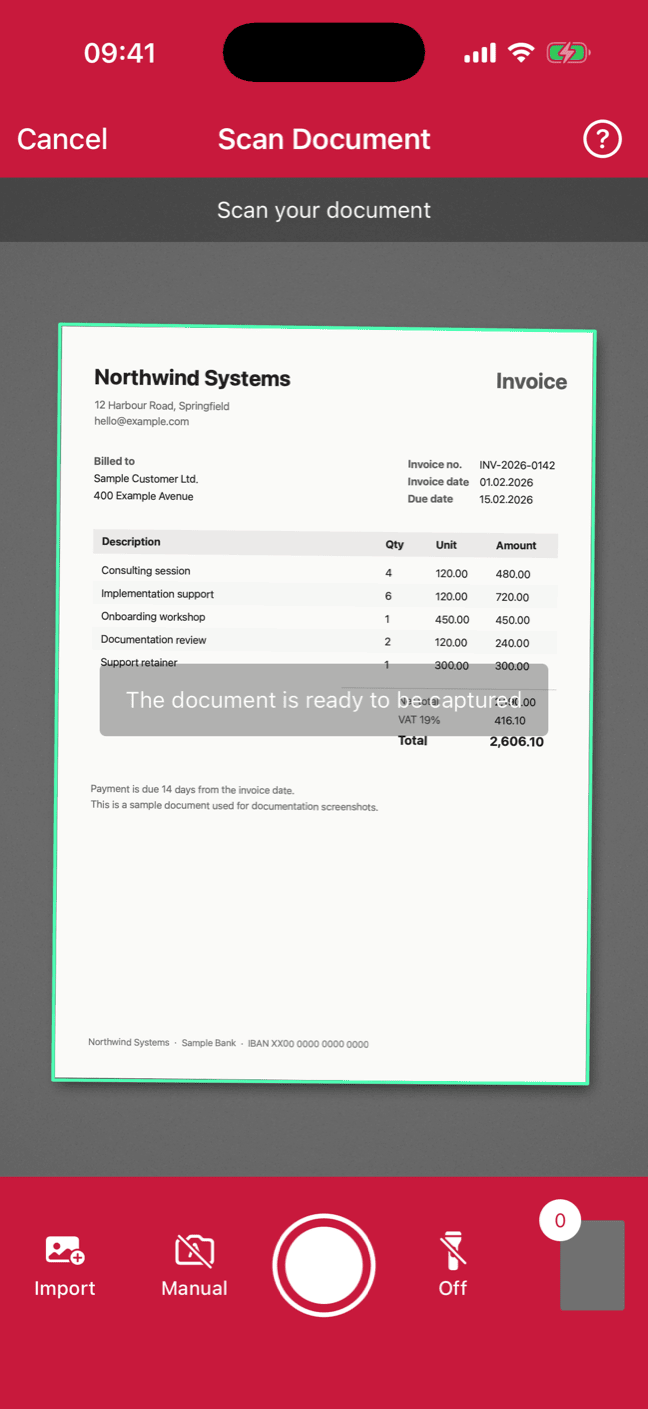
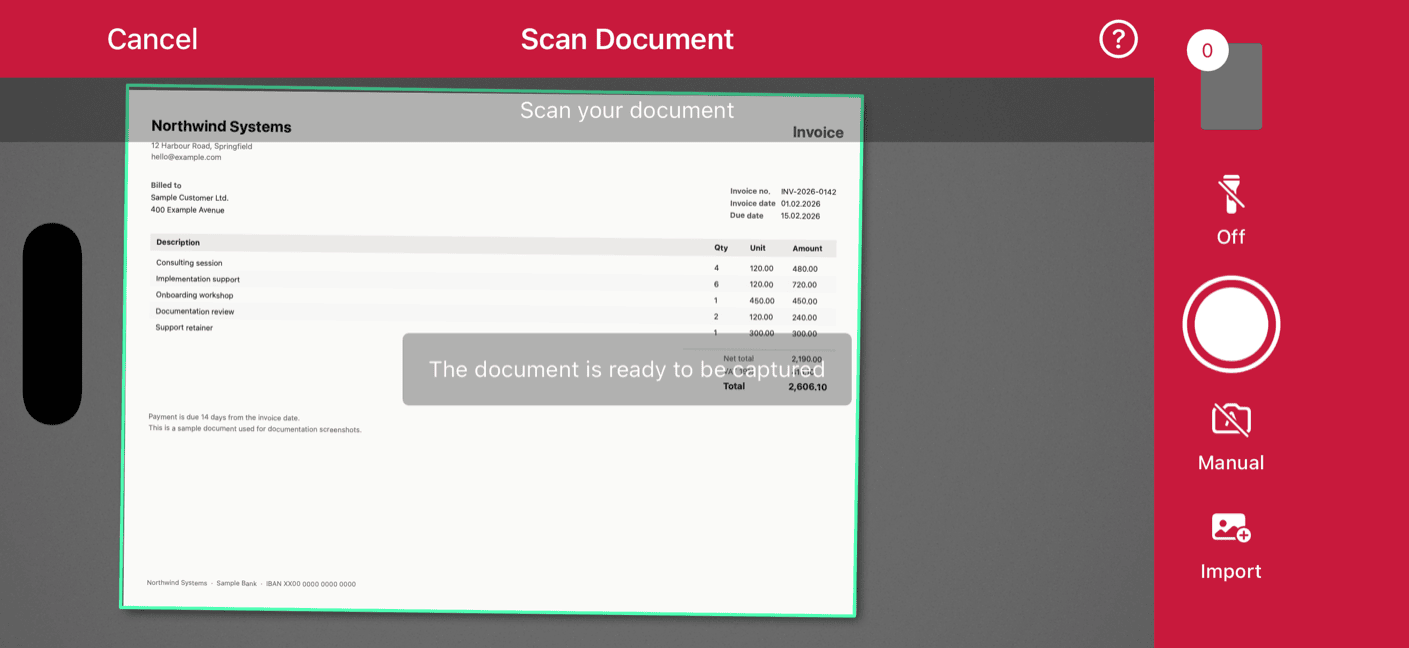
Automatic page rotation
The Scanning Screen turns pages upright by default. The Document Quality Analyzer checks each camera capture and each imported image for its text orientation. The screen then rotates the page to match, but only when the scanner detects a document on the page. To turn automatic rotation off, set screens.camera.autoRotateImages of your SBSDKUI2DocumentScanningFlow to false.
The analyzer reports an orientation only above a confidence threshold. If a page contains little text, or text much larger than normal body text, the screen can leave the page rotated. See the limitations of the Document Quality Analyzer.
Example configuration of the Scanning Screen
- UIKit
- SwiftUI
loading...
loading...
You can learn more about DocumentScanningFlow in the SDK's API documentation.
Want to scan longer than one minute?
Generate a free trial license to test the Scanbot SDK thoroughly.
Get free trial licenseScanbot SDK is part of the Apryse SDK product family
A mobile scan is just the start. With Apryse SDKs, you can expand mobile workflows into full cross‑platform document processing. Whether you need to edit PDFs, add secure digital signatures, or use a fast, customizable document viewer and editor, Apryse gives you the tools to build powerful features quickly.
Learn more