Custom UI scanning modes
Scanning a single barcode
- MAUI
- .NET Android
- .NET iOS
You can utilize the BarcodeScannerView class from xmlns:classicComponent="clr-namespace:ScanbotSDK.MAUI.Barcode.ClassicComponent;assembly=ScanbotSDK.Shared" to integrate barcode scanning functionality into your application seamlessly.
This component encapsulates the barcode scanning feature within a single UI component.
loading...
In the BarcodeClassicComponentPage class, the CameraView component is configured for barcode scanning.
loading...
Use the class BarcodeScannerView, which encapsulates the barcode scanning feature in one UI component. When using the BarcodeScannerView component, it's not required to work directly with the camera view or to set up a finder view separately. Simply follow the steps below and you are ready to go.
To start using the barcode feature, add the following view into your layout XML:
loading...
Then configure the view using the following calls:
loading...
The main class of the Custom UI is SBSDKBarcodeScannerViewController.
Usually, this view controller is embedded as a child view controller into another view controller, the parent view controller. The parent view controller usually acts as the delegate and processes the recognition results.
You still have full control over the UI elements and can add additional views and buttons to your view controller. The Custom UI Component does not display results, instead it just forwards them to the delegate.
loading...
For a fully functional example, refer to our example app scanbot-barcode-sdk-maui-example on GitHub.
Scan & Count
- MAUI
- .NET Android
- .NET iOS
Use the class BarcodeScanAndCountView from xmlns:classicComponent="clr-namespace:ScanbotSDK.MAUI.ClassicComponent;assembly=BarcodeSDK.MAUI", which encapsulates the Scan & Count feature in one UI component.
When using the BarcodeScanAndCountView component, it's not required to work directly with the camera view or to set up a finder view separately.
To start using the feature, add the following view into your XAML:
loading...
The cameraView component in BarcodeScanAndCountClassicComponentPage handles barcode scanning and counting smoothly. It manages scan results, visual settings, and detection control.
When the page appears, scanning starts, and it stops when the page disappears. Also, it handles button states for user interaction.
loading...
To enhance the configuration of the overlay with a manual SelectionOverlay, you can modify the above code by adding additional parameters and settings according to your needs.
loading...
Use the class BarcodeScanAndCountView, which encapsulates the ScanAndCount feature in one UI component. When using the BarcodeScanAndCountView component, it's not required to work directly with the camera view or to set up a finder view separately. Simply follow the steps below and you are ready to go.
To start using the feature, add the following view into your layout XML:
loading...
Then configure the view using the following calls:
loading...
Delegate the methods ScanAndCount and ContinueScanning in your Activity class (or Fragment) to BarcodeScannerView:
loading...
The main class of the Custom UI is SBSDKBarcodeScanAndCountViewController.
Usually, this view controller is embedded as a child view controller into another view controller, the parent view controller. The parent view controller usually acts as the delegate and processes the recognition results.
You still have full control over the UI elements and can add additional views and buttons to your view controller. The Custom UI Component does not display results, instead it just forwards them to the delegate.
loading...
For a fully functional example, refer to our example app scanbot-barcode-sdk-maui-example on GitHub.
Scanning multiple barcodes
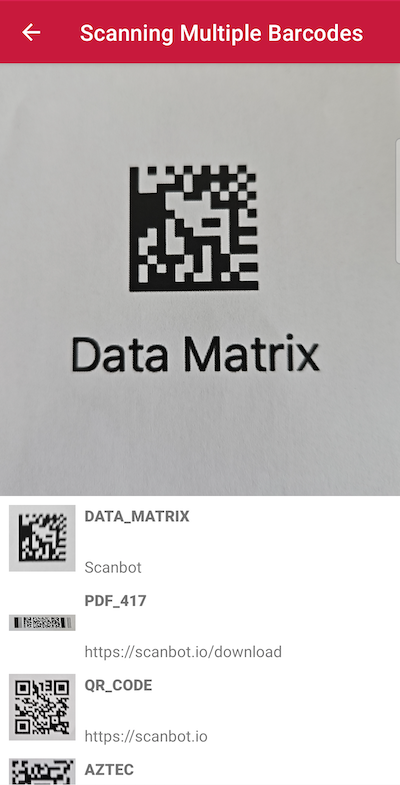
If you need to scan multiple barcodes simultaneously, you can configure the SDK to detect and extract all barcodes visible in the live view. This functionality can be complemented with an AR Overlay for visually highlighting the barcodes in view.
- MAUI
- .NET Android
- .NET iOS
loading...
loading...
loading...
Scanning tiny barcodes
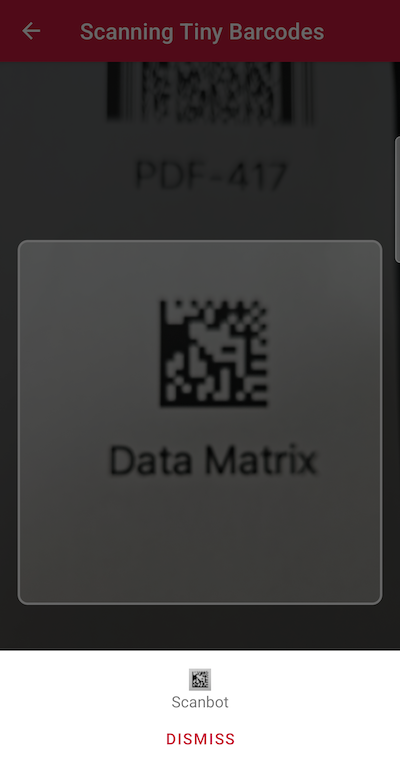
Are you dealing with very small barcodes like those typically found on electrical components? In this case, you can explicitly set a short focus distance for the camera. This adjustment allows the device to be moved very close to the small barcodes without losing focus. This improves the sharpness of the image and the scanning performance.
This setting does not affect any devices that have an "Ultra Wide" camera since the camera switches automatically to the "Ultra Wide" when focusing objects that are near the camera.
- MAUI
- .NET Android
- .NET iOS
loading...
loading...
loading...
Scanning distant barcodes
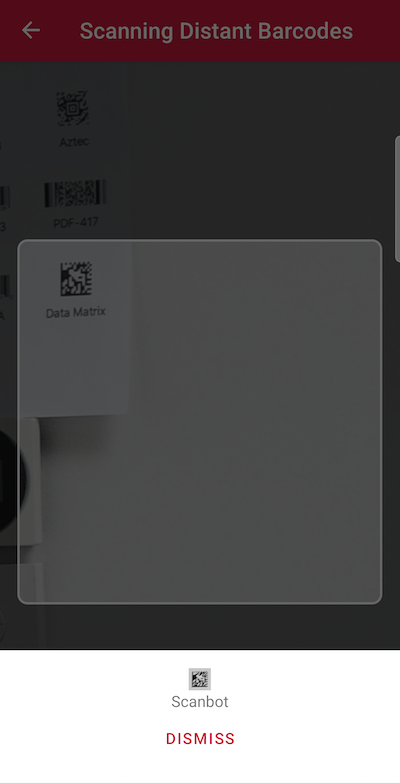
In scenarios where barcodes are positioned in hard-to-reach locations, you can significantly improve the scanning experience by using the camera’s optical zoom functionality. The Scanbot SDK allows you to enable and control both the optical and digital zoom. This ensures a suitable image crop for distant barcodes.
- MAUI
- .NET Android
- .NET iOS
loading...
loading...
loading...
AR Overlay scanning modes
Providing an extra layer of feedback for the user in the live view is useful for a range of scanning use cases. With the Barcode Scanner SDK's AR Overlay, you can highlight barcodes to provide feedback on scanned barcodes or locate specific items.
Refer to the AR Overlay section to learn more.
Want to scan longer than one minute?
Generate a free trial license to test the Scanbot SDK thoroughly.
Get free trial licenseScanbot SDK is part of the Apryse SDK product family
A mobile scan is just the start. With Apryse SDKs, you can expand mobile workflows into full cross‑platform document processing. Whether you need to edit PDFs, add secure digital signatures, or use a fast, customizable document viewer and editor, Apryse gives you the tools to build powerful features quickly.
Learn more